Why itinerary videos make your proposals stand out
Travel agencies can create instant, map-based itinerary videos for clients directly in the browser, without installing any software. Map Route turns a simple From–To pair into a clean animated journey your clients can immediately understand.
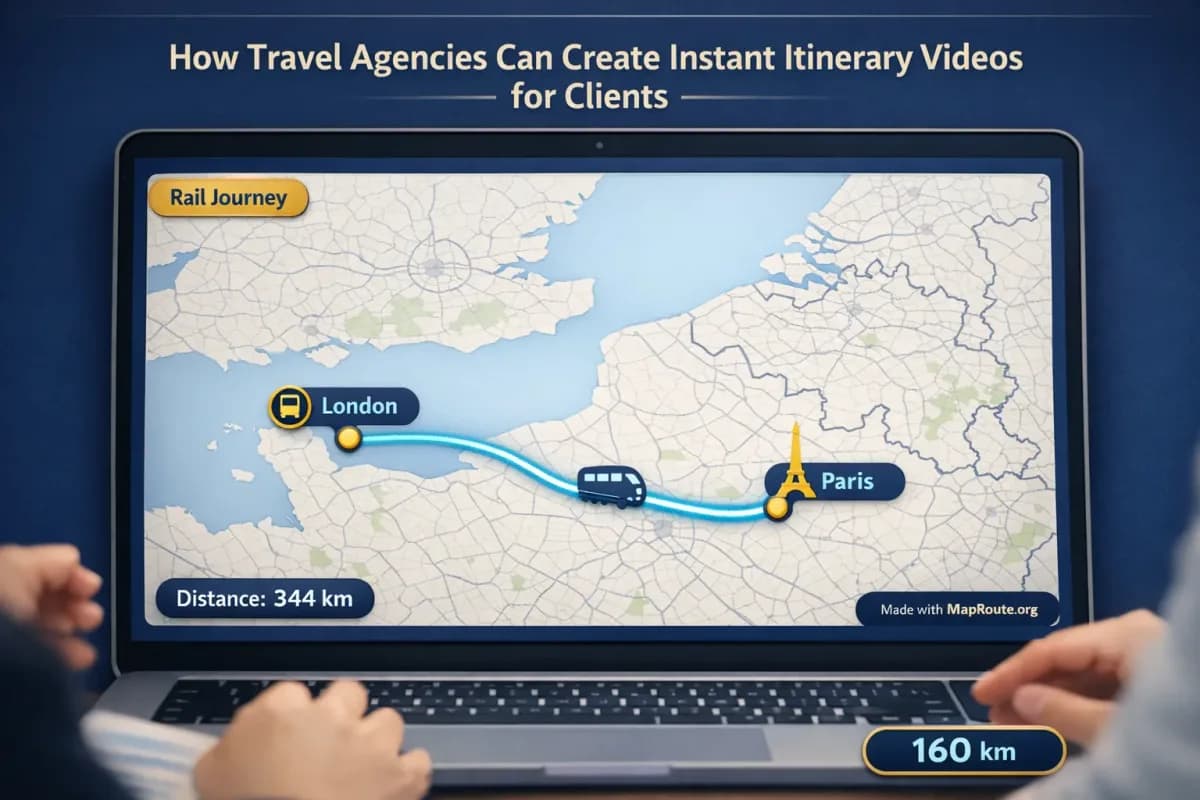
Instead of static PDFs or text-heavy emails, you can show a moving marker traveling from London to Paris by rail or Delhi to London as an air corridor, complete with distance labels and a professional-looking basemap. These short clips work well in client presentations, WhatsApp shares, social teasers, and on your website—especially when you add your own branding and voiceover in a video editor afterwards.
Map Route visualizes the geography between two places; it is not a booking tool and does not prove that a specific train, bus, or airline operates on that route.
Step-by-step: creating an itinerary video in minutes
1. Open Map Route in your browser
There is no desktop software or app to install. Open maproute.org in a modern browser such as Chrome or Safari on your laptop or phone. The tool runs entirely in the browser.
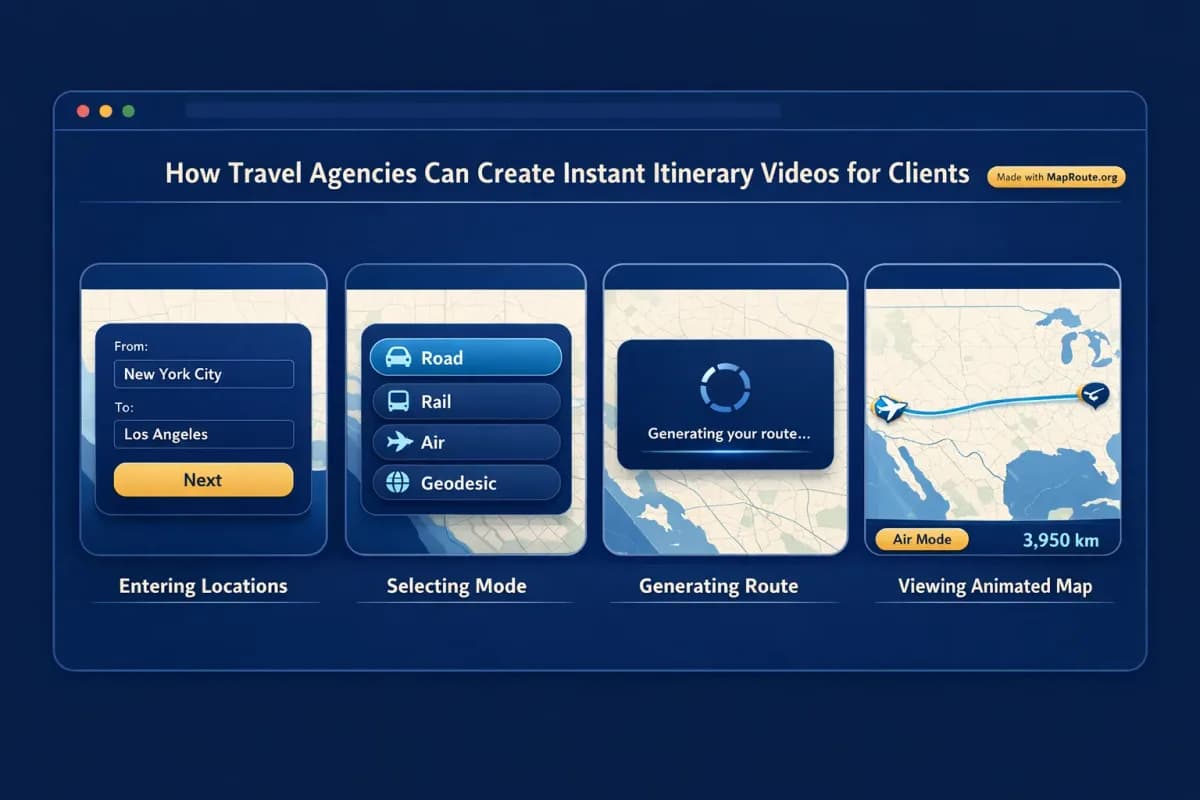
2. Search your From and To locations
In the composer, start typing at least two characters for the origin and destination. You can search for cities, regions, or countries as long as the underlying geocoders return them. For example:
- From: London, United Kingdom → To: Paris, France
- From: Delhi, India → To: London, United Kingdom
The suggestions show a label, geographic context, and a small badge for the kind of place, so you can confirm you picked the right one before generating.
3. Choose the visualization mode
Pick one of the four modes to match the type of journey you’re explaining to the client:
- Road – a typical road path from a routing engine, useful for self-drive itineraries or transfers.
- Rail – a railway alignment where geometry is available, ideal for routes like London–Paris by rail.
- Air corridor – an estimated great-circle line, good for long-haul flights such as Delhi–London.
- Geodesic – a straight-line distance on the globe, useful when you want a simple "as-the-crow-flies" visual.
If road or rail geometry cannot be computed between your chosen places, Map Route offers a geodesic line instead. There is no cruise-ship, ferry, or bus-service mode.
4. Generate and preview the journey
Click Generate Journey. Map Route goes through a short preparation sequence—resolving places, requesting geometry, framing the map, and preparing the journey. When it’s ready, you’ll see a marker or vehicle icon move along the path with a distance label (for example, "air corridor estimate km" or "railway geometry km").
Use the player controls to play, pause, replay, and adjust speed to 1x, 2x, or 4x. Most journeys at 1x are around 8–28 seconds depending on distance, which is ideal for attention spans and social platforms.
5. Register to download the video
To actually attach the animation to an email or proposal, you’ll want a downloadable clip. Logged-out visitors can generate up to three journeys but cannot download images or videos.
- Create a free account on maproute.org and verify your email.
- After verification, open your journey again.
- Click Download Video to capture the animation you’re watching.
The export is a browser capture of the player as an MP4 (H.264) when the browser supports it, otherwise WebM. It includes the “Made with MapRoute.org” watermark; there is no watermark-free export in the current product.
On a verified free account, each Generate Journey, Download Video, and Export Image counts as one use, with 5 combined uses per UTC day. Reading the blog does not count toward this limit.
6. Add branding and context in your own editor
Map Route focuses on the animated map. It is not a full video editor—there are no titles, music, or voiceover tools inside the player. The recommended workflow for agencies is:
- Download the Map Route clip.
- Open your preferred video editor (for example, Canva, CapCut, Premiere Pro, or any tool you already use).
- Add your logo, contact details, and key itinerary text overlays.
- Record a short voiceover explaining the trip and add background music if you like.
- Export in the format you need for email, WhatsApp, or social media.
Key features that matter for travel agencies
Clear, client-friendly visuals
Map Route uses a light, political-style basemap that keeps borders, coastlines, and major geography readable without overwhelming the route line. The camera framing is automatic: short hops like London–Paris are shown more tightly, while long hauls like Delhi–London are framed broadly so the entire route is visible at once.
A moving marker or vehicle icon traces the route, while a km tracker shows the distance of the computed line. Labels make it clear whether the distance is a road path, railway geometry, air corridor estimate, or geodesic line. This helps clients quickly grasp the scale of the journey without confusing it for travel time or ticket mileage.
Four modes for different itinerary segments
Most agency itineraries combine flights, trains, and road transfers. Map Route reflects that variety with four visualization modes, but each generated journey is always between two endpoints and one mode at a time. There is no way to combine plane + train + road into a single Map Route file; instead, you generate each leg separately and join the clips in your editor.
This aligns well with how you already structure itineraries: individual segments that can be rearranged, updated, or replaced as a client changes their mind.
Aspect ratios that fit both social and presentations
Map Route automatically adapts the aspect ratio to the window size:
- Below 768px wide (for example, on a phone): 9:16 vertical, ideal for TikTok, Instagram Reels, YouTube Shorts, and Stories.
- 768px and wider (for example, a laptop browser): 16:9 landscape, ideal for YouTube, website embeds, and slideshow intros.
There is no aspect ratio picker in the tool itself. If you want a vertical clip, generate and capture on a phone or a narrowed desktop window; for landscape, use a wider window. You can still crop or reframe later in your video editor if needed.
Browser-based and device-flexible
Because Map Route runs in the browser, your team can use it from office desktops or while traveling with only a phone. Place search, generating journeys, and player controls work on both. Image and video downloads require a verified account, but the generation and preview experience is the same.
Video capture can fail in some browser setups even when the player itself works. When that happens, Map Route shows a notice; you can try another browser or device.
Practical examples: from quote to client-ready video
Example 1: London to Paris by rail for a city-break client
Imagine a client asking about a long weekend city break, traveling by train from London to Paris. You want them to feel how simple and direct the journey is.
- In Map Route, set From: London, United Kingdom and To: Paris, France.
- Select Rail mode to emphasize the railway alignment between the two capitals.
- Generate the journey and play it at 1x to get a ~10–20 second clip where the marker glides from London to Paris, with the railway geometry km clearly labeled.
- Download the video, then add a short intro slide in your editor: “London–Paris high-speed rail city break, 3 nights in each city.”
- Overlay timing notes like “About 2.5 hours by train” in your editor (the time data comes from your own knowledge or suppliers, not from Map Route).
The result is a short, clear video you can attach to your quote email or embed on a landing page promoting rail-based city breaks.
Example 2: Delhi to London as a flagship long-haul air corridor
For a client booking a premium long-haul trip from Delhi to London, you can illustrate the scale of the journey with an air corridor animation.
- Set From: Delhi, India and To: London, United Kingdom.
- Choose Air corridor mode to show an estimated great-circle path.
- Generate the journey; the camera will frame a wide view of Eurasia with a smooth line arcing between the two cities.
- Download the clip and add voiceover in your editor: “Your journey begins in Delhi and takes you across continents to London, where your European adventure starts.”
- Add follow-up clips for Europe rail segments or road trips using separate Map Route journeys.
This type of visual works well in premium itinerary PDFs (embedded as a link), on your website, or in a welcome video sent to the client after confirmation.
Example 3: Multi-stop tours using multiple journeys
Many agency itineraries involve several stops—perhaps London → Paris → Geneva → Milan by train, or a loop of road segments within a country. Map Route does not have a multi-stop waypoint editor; each generate is exactly two endpoints. The workaround is straightforward:
- Break the itinerary into legs (for example, London–Paris, Paris–Geneva, Geneva–Milan).
- Generate and download a separate Map Route clip for each pair in the appropriate mode (rail or road).
- In your video editor, place the clips back-to-back, adding text overlays like “Day 1–3: London to Paris,” “Day 4–5: Paris to Geneva,” and so on.
- Optionally, intersperse the map clips with B-roll footage or photos of the destinations.
Map Route cannot combine plane, train, and road into a single continuous animation. Use your video editor to stitch multiple Map Route clips into one narrative.
Supporting vlogs and client welcome videos
If your agency creates YouTube videos or client welcome clips, a short map animation is an easy way to open or close the video with a clear sense of place.
Integrating Map Route into a vlog-style workflow
- Generate your key segments in Map Route—e.g., London–Paris (rail) and Delhi–London (air corridor).
- Download the clips in 16:9 by using a wide desktop window.
- In your editing software, place the route animation at the start as an animated intro.
- Overlay your channel branding and episode title, then cut into your on-camera or destination footage.
- Use the same animation again at the end as a recap or teaser for the next leg of the journey.
Because playback speed can be set to 1x, 2x, or 4x before you capture, you can match the pacing of your vlog: slower for cinematic intros, faster for snappy recaps. Any exact beat-matching to music happens later in your editor by trimming or speeding up the exported clip.
Client-facing welcome videos
Welcome videos sent after booking can include a Map Route animation to reassure clients about the flow of their trip. For example, show Delhi–London as an air corridor, then a series of shorter road segments within the UK. Use your voiceover to explain check-in times, transfer details, and what to expect—information that comes from your expertise, not from Map Route.
How Map Route compares to other ways of making route videos
Travel agencies sometimes use heavy desktop software or mobile storytelling apps to create route animations. Map Route sits in between: more focused and map-accurate than simple drawing tools, but far lighter and faster than full motion-graphics suites.
| Tool type | Typical setup | Strengths for agencies | Limitations |
|---|---|---|---|
| Map Route (browser-based) | Open in Chrome/Safari, no install; free account for downloads | Fast two-point map animations with distance labels; road/rail/air/geodesic modes; vertical or landscape via window size | Two endpoints per journey only; no multi-stop editor; watermark on downloads; no built-in titles or audio |
| Desktop motion-graphics software (e.g., After Effects with map plugins) | Installed on a powerful computer; typically paid licenses and plugins | Highly customizable camera moves, keyframes, branding, and complex multi-stop sequences | Steep learning curve, slower to produce each itinerary, not practical for quick daily client quotes |
| Mobile travel-story apps (e.g., narrative route apps on phones) | Install on phone; usually app-specific workflows | Quick story-style outputs and social-ready formats from the phone | Less control over precise map geometry; may be less suitable for formal proposals or desktop presentations |
Map Route does not offer custom camera keyframes or 3D globe exports. The map is a 2D/tilted MapLibre view with automatic framing.
Implementation checklist for your agency
Before you start creating itinerary videos
- Decide which itineraries benefit most from a route animation (e.g., long-haul air plus rail tours, complex overland routes).
- Create and verify a free Map Route account for your team.
- Test a few example journeys (like London–Paris and Delhi–London) to understand how the four modes look.
- Choose a standard video editor your staff are comfortable with for adding branding and voiceovers.
- Define a simple visual style: fonts, colors, and logo placement you’ll apply to all exported clips.
When creating each itinerary video
- Break the itinerary into two-point legs (one Map Route generate per pair).
- Select the appropriate visualization mode for each leg: road, rail, air corridor, or geodesic.
- Generate and preview at 1x speed; adjust to 2x or 4x if you need a snappier version.
- Capture vertical (phone/narrow window) for social or landscape (wide window) for presentations.
- Download the video, then add titles, your logo, and any timing notes in your editor.
- Export and attach the final video to your proposal email or upload it to your social channel.
Ongoing optimization
- Track which clients respond positively to itinerary videos and where you use them (email, WhatsApp, website, social).
- Create a small library of reusable clips for your most popular routes.
- Train staff on the difference between Map Route’s distance labels and actual travel times or ticket distances.
- Review browser performance periodically; if capture fails in one browser, test another.
- Update your templates if Map Route introduces new capabilities or visual refinements.
FAQ
Can travel agencies use Map Route as a booking or ticketing tool?
No. Map Route is a browser-based travel map animation maker that visualizes geography between two places. It is not a booking desk, timetable, ticketing system, or proof that a bus, train, or airline operates between those places. You should always rely on your own booking systems and supplier information for availability and schedules.
How many stops can I include in one Map Route itinerary video?
Each Map Route journey is exactly two endpoints: one From and one To. There is no built-in multi-stop waypoint editor and no way to combine plane, train, and road into a single continuous animation. For multi-leg itineraries, generate a separate journey for each pair of stops and then combine those clips in your own video editor.
Does Map Route work worldwide for all cities and airports?
Map Route relies on public geocoders (Photon with a Nominatim fallback) for place search, and on open routing and map data. You can usually search cities, regions, and countries in many parts of the world, but worldwide coverage is not guaranteed and some locations or codes may not resolve. Road and rail paths also depend on whether geometry can be computed between your chosen places.
What browsers and devices can my team use with Map Route?
Map Route runs in modern browsers, including Chrome and Safari, on both desktop and mobile devices. You don’t need to install any app or plugin. Place search, generating journeys, and player controls work on phones and desktops. Video and image downloads require a verified account and may work more reliably on desktop browsers; if capture fails in one browser, try another.
What export formats are available and is there a watermark?
After you register and verify your email, you can download videos of your journeys and export still images. The video is a browser capture of the animation you see, typically as an MP4 (H.264) when supported by your browser, otherwise as WebM. The image export is a WebP still of the current player view. All downloads include a “Made with MapRoute.org” watermark, and there is currently no watermark-free export option.
Is Map Route free for travel agencies, and are there usage limits?
Map Route is free to use and there is no self-serve checkout. Logged-out visitors can generate up to 3 journeys but cannot download media. With a verified free account, you get 5 combined uses per UTC day—each Generate Journey, Download Video, and Export Image counts as one use, and the limit resets daily. Paid plans exist only as manual upgrades by contacting the team from your account page.
Can I add my agency’s logo, text, and music directly in Map Route?
No. Map Route is focused on creating the animated map itself. It does not include tools for adding titles, logos, voiceovers, or music, and there is no audio sync or beat-matching inside the player. The recommended workflow is to download the Map Route clip and then use your own video editor to add branding, text overlays, and sound.
How long are the itinerary videos generated by Map Route?
At the default 1x speed, Map Route computes the duration from the distance of the route, typically resulting in animations of about 8–28 seconds. You can change playback speed to 2x or 4x for a faster version before capturing the video. This makes the clips well-suited for email embeds, social media, and vlog intros, where shorter content performs better.