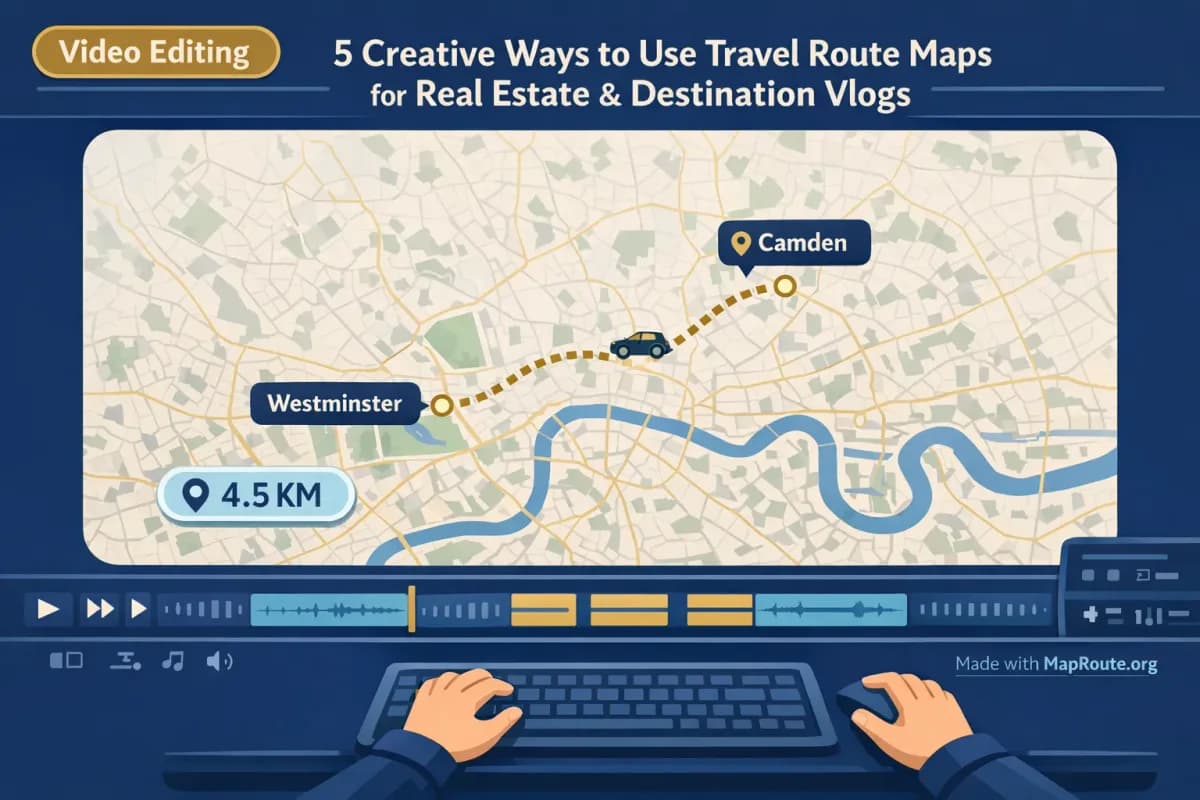
Why travel route maps work so well in real estate and destination vlogs
Travel route maps instantly answer two questions your viewers always have: “Where is this?” and “How far is it from somewhere I know?” That makes them perfect for both real estate videos and destination vlogs, where location and distance are part of the story you’re trying to sell.
Instead of manually keyframing map moves in a heavy desktop editor, you can generate smooth, animated journeys in your browser with a tool like Map Route and then drop those clips into your edit. You get a moving marker, an on-screen distance counter, and automatic framing between two places—ideal for showing a property’s commute, a neighborhood’s hotspots, or a long road trip segment.
This article walks through five creative ways to use travel route maps in real estate and destination vlogs, using concrete examples like a road journey from Westminster to Camden or a cross-country drive from New York to Los Angeles. You’ll see where animated maps add the most value, how to generate them with Map Route, and how to integrate them into your existing workflow without adding hours of editing.
How to create an animated travel route map in your browser
Before diving into creative ideas, it helps to understand the basic workflow for generating a route animation you can use in your real estate or destination vlog. Map Route is built for exactly this: quick, two-point travel animations you can export and edit into your video.
- Open maproute.org in a modern browser: You don’t need to install an app or plugin. Just open the site on desktop or phone. If you plan to download video or images, register and verify your email first so exports are enabled.
- Choose your aspect by window size: On phones or a narrow browser window under 768px, the player is vertical 9:16—ideal for TikTok, Instagram Reels, Shorts, and Stories. On a wider window (768px+), it’s 16:9 for YouTube and landscape vlog intros.
- Search your From and To locations: In the composer, start typing at least two characters for each end of your route (for example, “Westminster” and “Camden” or “New York” and “Los Angeles”). Pick from the suggestions that show a label and context.
- Pick a visualization mode: Choose Road for typical driving paths, Rail for railway alignments where available, Air corridor for an estimated great-circle line between cities, or Geodesic for a straight-line distance on the globe. For real estate and destination vlogs, Road and Air corridor are usually the most useful.
- Generate the journey: Click Generate Journey. Map Route goes through a few prep stages—resolving places, requesting geometry, framing the map, preparing the journey. If the route geometry is quick to compute, the last step may be almost instant.
- Preview and adjust playback speed: Use the player controls to Play, Pause, Replay, and change speed between 1x, 2x, and 4x. Duration at 1x is usually around 8–28 seconds depending on distance, which is ideal for quick cutaways in your vlog.
- Download the animation or a still: After you’ve verified your account, you can Download Video (browser capture of the animation, including the distance tracker) or Export Image (a WebP still of the current frame). Both include a “Made with MapRoute.org” watermark, which you can frame around or design with in your edit.
Each Map Route journey is always between exactly two points. For multi-stop trips, generate one clip per leg and combine them in your video editor.
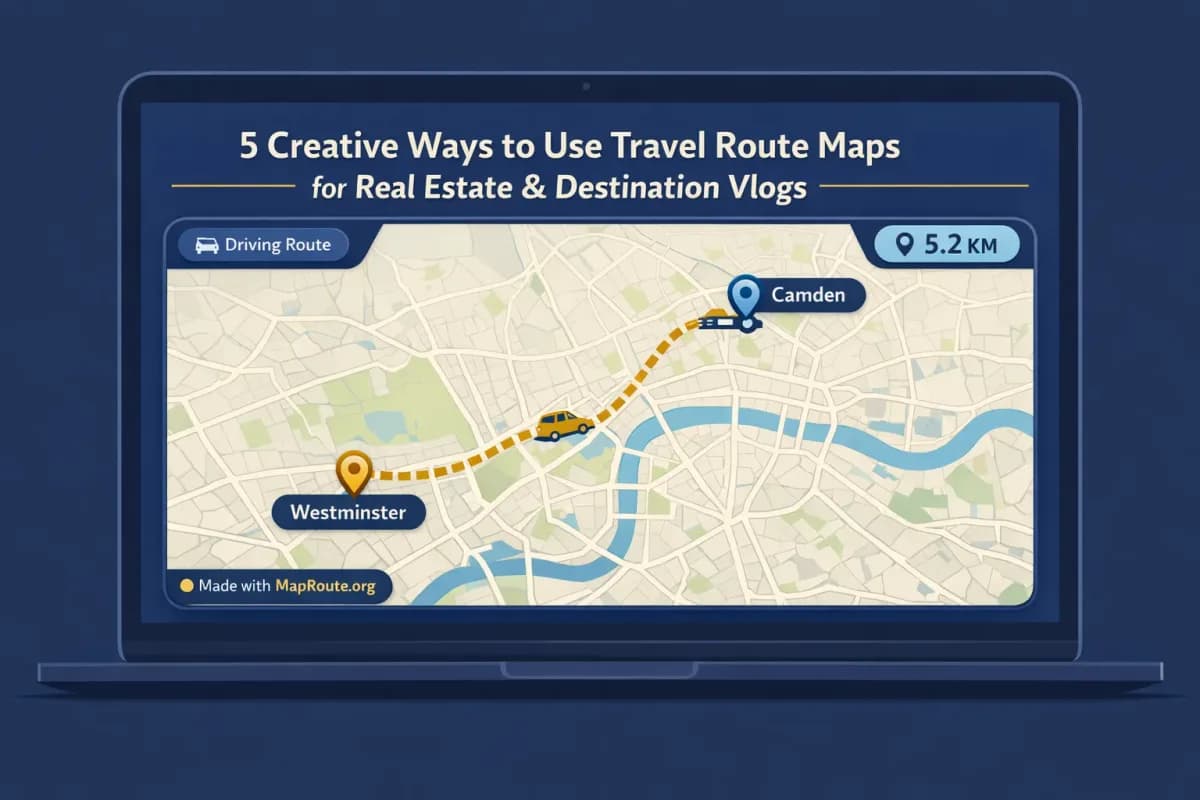
Key Map Route features that matter for creators
For real estate and destination vloggers, the value of a tool isn’t just what it does, but how it fits into a fast-paced content workflow. Here are the Map Route capabilities that tend to matter most when you’re publishing regularly.
Four travel visualizations tailored to different stories
Map Route offers four distinct ways to visualize distance between two places. You can pick the one that best matches your story:
- Road: Shows a road path from a routing engine—great for commutes, neighborhood connections, and road trip vlogs.
- Rail: Uses railway alignment data where available—useful if your vlog focuses on train journeys, though it’s not a ticket or proof a passenger service exists.
- Air corridor: An estimated great-circle line between two points—ideal for “we flew from X to Y” segments in destination vlogs.
- Geodesic: A straight-line distance on the globe—handy when road or rail geometry can’t be computed or when you just want to emphasize how far something is.
Automatic framing and a moving marker
You don’t need to set up your own camera moves. Map Route automatically frames short hops tightly (for local real estate routes like Westminster to Camden) and zooms out for long hauls (like New York to Los Angeles). A marker or vehicle icon travels along the computed line, and a distance counter shows how many kilometers that particular path represents.
The distance shown is the length of the actual line Map Route computed (road path km, railway geometry km, air corridor estimate km, or geodesic km). It’s not a driving time, official ticket distance, or proof of a specific service.
Aspect ratio that matches your platform
Instead of picking export presets, you control aspect ratio by how wide your browser window is when you generate and capture the animation. Under 768px wide (phone or narrow desktop window) you get 9:16 for vertical platforms; at 768px and above you get 16:9 for YouTube and other landscape players. The exported video or still matches whatever aspect you see in the player.
Simple exports for your editor
Once your email is verified, you can download your journey as a video (MP4 where the browser supports H.264, otherwise WebM) or a WebP still. The video is a capture of the animation running in your browser—there’s no separate server-side HD render—and it includes the on-screen distance tracker and a “Made with MapRoute.org” watermark. If capture fails in your browser, the journey still plays interactively, but you’ll see a notice instead of a download.
5 creative ways to use travel route maps in your vlogs
1. Show a property’s commute in a real estate tour
Buyers and renters care deeply about commute time and convenience. An animated map between a recognizable landmark and the property makes that instantly clear. For a London listing, you might generate a road journey from Westminster to Camden to show how well-connected a Camden flat is to central government and cultural hubs.
Workflow idea: record your home tour, then in your editor cut to a 10–20 second Map Route clip showing the road path from Westminster to Camden. Add a simple voiceover like, “We’re just a quick drive north from Westminster, along this route,” and overlay a text label with your estimated commute time based on your own research. The km tracker helps viewers feel the scale, even if you’re not showing minutes directly.
2. Highlight neighborhood access and local hotspots
For lifestyle-focused real estate content, you can use multiple short clips to show how a property connects to nearby hotspots: the waterfront, a major park, or the local nightlife district. While Map Route doesn’t support multi-stop routes in a single animation, you can generate several two-point journeys and stitch them together.
Example approach for a Camden listing:
- Generate Westminster → Camden (Road) to show central access.
- Generate Camden → another nearby district (Road) to highlight nightlife or shopping.
- Edit the clips back-to-back in your timeline, with quick labels like “To Westminster” and “To [Hotspot Name]”.
The result feels like a mini lifestyle map reel, without needing a complex GIS setup or custom motion graphics.
3. Open a destination vlog with a long-haul journey
For destination vlogs, a long-haul journey sets the stage and gives viewers a sense of scale. A route like New York to Los Angeles is perfect for this. You might choose Road if your video is about a cross-country drive, or an Air corridor if you’re flying between coasts.
Try this structure for a YouTube vlog:
- Start with a 16:9 Map Route animation of New York → Los Angeles at 1x speed, over your intro music.
- Cut from the end of the map to your airport or highway B-roll.
- Use the on-screen km tracker as a talking point: “We’re going to cover roughly this many kilometers over the next week.”
Because Map Route’s camera automatically frames long distances more widely, you don’t need to fiddle with zoom levels to make both coasts visible.
4. Break up long travel days with chapter markers
If your vlog covers a multi-day road trip or multi-city itinerary, travel route maps make excellent chapter markers between segments. Although Map Route doesn’t do multi-stop animations, you can quickly generate one clip per leg and use them as visual separators.
For example, on a road trip vlog that eventually spans New York to Los Angeles, you might create clips for:
- New York → a midwestern city (Road)
- Midwestern city → a mountain town (Road)
- Mountain town → Los Angeles (Road)
Drop each clip between your daily B-roll segments. Viewers will always know where they are in the journey, without you needing to repeat the same explanation on camera.
5. Create vertical map reels for social teasers
Short, vertical map animations make great teasers for upcoming vlogs or property tours on TikTok, Instagram Reels, and YouTube Shorts. Because Map Route automatically switches to 9:16 on phones or narrow windows, it’s easy to create a vertical-friendly version of the same route.
Example: After publishing your full YouTube vlog about driving from New York to Los Angeles, open Map Route on your phone, generate the same New York → Los Angeles road journey in vertical aspect, download the clip, and add text like “Crossing the USA in X days” in your editing app. Post it as a short with a link to the full vlog.
Optimizing route maps for TikTok, Reels, and Shorts
If you’re creating for social platforms, the key is getting the aspect ratio, length, and pacing right so your map animation feels native to the feed rather than like a repurposed desktop clip.
Get the vertical format right
To produce a vertical 9:16 clip with Map Route, either use your phone or resize your desktop browser window below 768px width before you generate and export. The player will adapt to 9:16, and your downloaded video or still will match that aspect.
Keep it short and focused
At 1x speed, most Map Route animations land between about 8 and 28 seconds depending on distance. For Reels and TikTok, that’s already in a good range. If you want something snappier, switch playback to 2x or 4x before capture to compress the journey while keeping the full path visible.
Add text, voice, and music in your editor
Map Route doesn’t handle audio upload, beat-sync, titles, or stickers. The recommended workflow is to download the clip, then in your usual editing app add:
- On-screen labels for your From and To locations
- Captions or voiceover explaining what the journey represents
- Music that matches the speed of the map animation
- Other B-roll cutaways before or after the map clip
Because exports include a “Made with MapRoute.org” watermark, plan your layout so that important text or graphics don’t clash with it.
Integrating map animations into a real estate or travel vlog edit
Once you have your route clips, the final step is weaving them into your vlog so they enhance the story rather than distract from it.
Use maps as context, not the main event
For both real estate and destination vlogs, treat the map as a quick context shot. A 10–20 second animation between your on-camera segments or B-roll is usually enough. For example, in a property tour, go from exterior B-roll → 10 seconds of a Westminster → Camden commute map → interior shots. In a travel vlog, use a New York → Los Angeles road map between your East Coast and Midwest chapters.
Match pacing with speed controls
If your edit is fast-paced, generate the route and then preview it at 2x or 4x speed to see what feels right. Capture at that speed so the map doesn’t slow your video down. For slower, cinematic intros, 1x speed plus a gentle music bed works well.
Combine multiple legs in your editor
For multi-leg trips and complex neighborhood stories, generate one Map Route clip per leg (for example, property → downtown, property → airport, property → beach) and arrange them back-to-back on your timeline. Add quick title cards or on-screen labels between them to clarify each leg. This gives you the feel of a multi-stop journey even though each animation is a simple two-point route.
Map Route vs heavier tools for animated travel maps
If you’ve ever tried to build animated map routes in desktop software, you know how much time keyframes and plugins can eat. Here’s how a browser-based workflow compares at a high level.
| Tool / approach | Typical setup | Best for | Trade-offs |
|---|---|---|---|
| Map Route (maproute.org) | Browser-based, no install; generates two-point routes with automatic framing and a moving marker | Creators who need quick, clean road/rail/air/geodesic animations for vlogs and reels | Always two endpoints per clip, exports include a “Made with MapRoute.org” watermark, no built-in audio or titles |
| Desktop motion graphics (e.g., After Effects with map plugins) | Full desktop software, often paid plugins; manual keyframes and custom camera paths | Studios or creators who need highly customized map sequences and full control over camera moves | Steeper learning curve, longer build times, requires installation and more powerful hardware |
| Mobile route animation apps (e.g., travel-themed story apps) | Phone apps with templates and social-focused exports | Quick social stories and casual sharing | Feature sets vary; may be less precise about distance and routing, and less suited to long-form vlog workflows |
For most real estate and destination vloggers, Map Route hits a sweet spot: you get believable road paths and distance counters without needing to become a motion designer. You then finish the story—voiceover, B-roll, titles—in the tools you already use.
Creator checklist: making the most of travel route maps
Before you generate your map
- Decide which two points tell the clearest story (e.g., property → city center, airport → destination, old home → new home).
- Choose the mode that matches your narrative: Road for driving or commutes, Air corridor for flights, Rail for train-focused stories, Geodesic when others aren’t available.
- Pick your aspect ratio by planning where the clip will go (9:16 for vertical social, 16:9 for YouTube and property tour videos).
- Draft one sentence of voiceover you’ll say over the map (for example, “Here’s how close this flat is to Westminster…”).
When using Map Route
- Open maproute.org in a modern browser on desktop or phone.
- Search and select your From and To locations carefully from the suggestions.
- Generate the journey and preview at 1x, 2x, and 4x to see what fits your edit.
- Use Copy link if you want to regenerate the same pair later or on another device.
After export, in your editor
- Import the downloaded clip (MP4 or WebM) into your editing timeline.
- Trim the map segment to 8–20 seconds to keep your pacing tight.
- Add labels, voiceover, and music in your editor—Map Route doesn’t handle audio or titles.
- Check that your own graphics don’t obscure the “Made with MapRoute.org” watermark or the km tracker.
- For multi-leg trips, line up several two-point clips in sequence with simple text cards in between.
FAQ
Can I use Map Route for both real estate videos and destination vlogs?
Yes. Map Route is a browser-based travel map animation maker that works well for any story where you want to show the distance and path between two places. Real estate creators often use it to show commutes or neighborhood access, while destination vloggers use it for road trips, train journeys, or flight corridors.
Does Map Route support multi-stop routes in a single animation?
No. Each Map Route journey is always between exactly two endpoints: a From and a To. There is no multi-stop waypoint editor. To show multi-leg trips, generate one clip per leg and combine them in your own video editor.
What devices and browsers can I use with Map Route?
Map Route runs in modern browsers, including common options like Chrome and Safari, on both desktop and mobile. You don’t need to install an app or plugin. Place search, journey generation, and playback work on phones and desktops. Video and image downloads also happen in the browser once your account is verified.
How do aspect ratios work for YouTube vs TikTok or Reels?
Map Route doesn’t have an aspect ratio picker. Instead, the player follows your browser window. Below 768px wide (for example, on phones or a narrow desktop window) it uses a 9:16 vertical aspect suitable for TikTok, Instagram Reels, YouTube Shorts, and Stories. At 768px and wider, it uses a 16:9 landscape aspect that fits YouTube and standard vlog formats.
What kind of exports does Map Route provide?
After you register and verify your email, you can download a video capture of the animation (MP4 with H.264 where supported, otherwise WebM) or export a WebP still image of the current frame. The video is captured in your browser based on what you see in the player; it’s not a guaranteed server-rendered HD export. All downloads include a “Made with MapRoute.org” watermark.
Is Map Route free, and are there usage limits?
Map Route is free to use. Logged-out visitors can generate up to 3 journeys but cannot download images or videos. With a verified free account, you get 5 combined uses per UTC day—each Generate Journey, Download Video, or Export Image counts as one use. The quota resets at the start of the next UTC day. There is no self-serve checkout; paid plans, if needed, are handled manually via the account page.
Does Map Route show real travel times or bookable tickets?
No. Map Route visualizes geography between two places with a road path, railway alignment, estimated air corridor, or geodesic line. The km tracker is the length of the line it computed, not a driving time, schedule, or ticket distance. It is not a booking desk, timetable, or proof that a bus, train, or airline operates between those places.
Can I add music, voiceover, or titles directly in Map Route?
No. Map Route focuses on generating the animated map itself. It doesn’t include audio upload, music sync, titles, or B-roll editing. The recommended workflow is to download the map clip and then add voiceover, music, captions, and other visuals in your usual video editor.